Run Setup
Open the Setup tab in VTrackToolkit and complete the four steps in order, after mounting or moving the launch monitor.
Network
Select the adapter the launch monitor is wired to and connect. Wait for “Sensor is connected.” under the list.
Calibration
Place the calibration board with ↑ SCREEN ↑ toward the screen, inside the dashed yellow box and along the vertical line in both camera views. Press Start Calibration.
Ball Check
Place a ball in each cell of the grid and press Start Ball Check. Every ball should be circled in green.
Ready / Tee Area
Choose Fixed or Non-fixed for Ready and for Tee; for Fixed, drag the red corner handles to size the area. Press Apply Area and wait for “Setting Area Success!”.
If Calibration Fails
Calibration stops with a message when the board is not placed correctly. Fix the board, then press Start Calibration again.
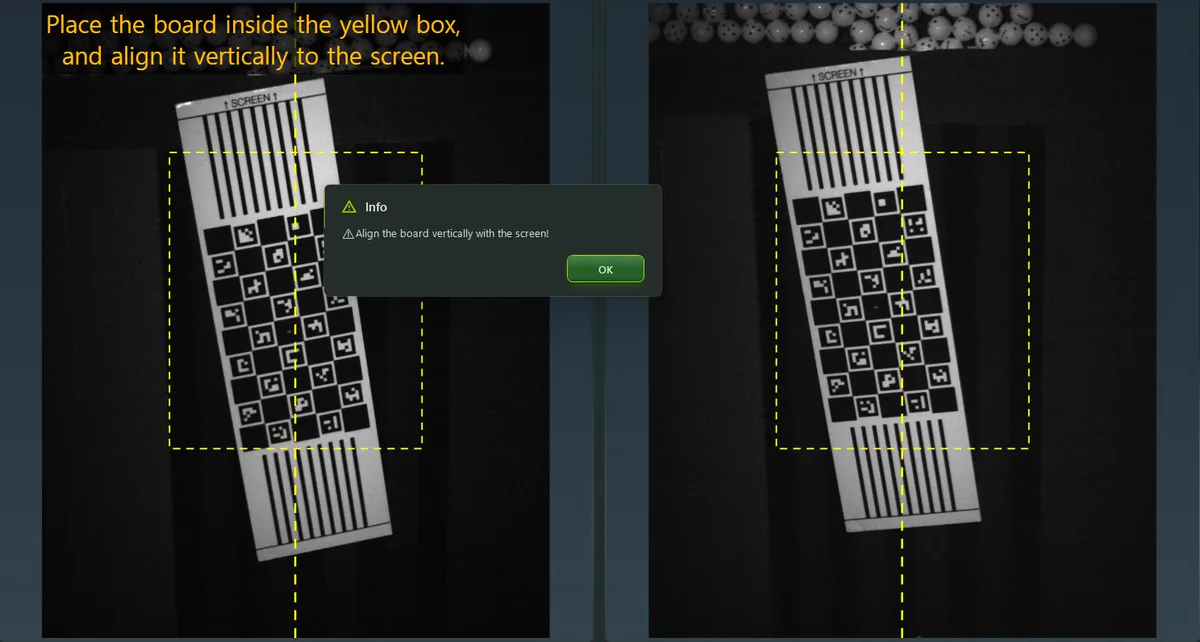
“Align the board vertically with the screen!”
The board is slanted. Turn it until it runs along the vertical line in both views.
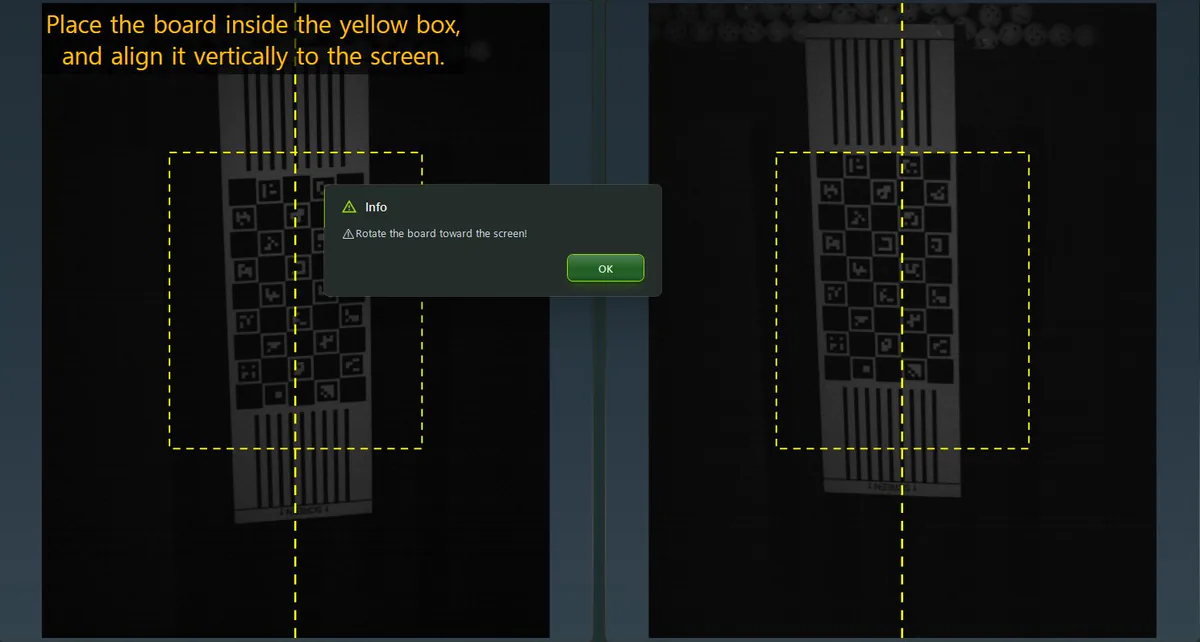
“Rotate the board toward the screen!”
The board is the wrong way round. Turn it so the SCREEN mark faces the screen.
Fixed suits a tee or mat that never moves; Non-fixed lets the player set up anywhere in view. If a Ball Check cell keeps failing, the launch monitor is probably aimed or mounted slightly off.
More Details in the User GuideStill Need Help?
If VTrackToolkit is running, report it in the app: Support → Report Issue. Logs and diagnostic details are attached automatically.
If VTrackToolkit won't start or the report can't be sent, email us with a photo of the screen:
service@laonpeople.com